


Kundra
Be a part of Nullsto's Growth ;)
Staff member
Moderator
Nullsto Lover
GiveAway Master
Trusted Uploader
- Joined
- Sep 16, 2022
- Messages
- 4,072
- Reaction score
- 6,361
- Points
- 193
This time it's a short method of posting contextual links on Caramellaapp .com. For those that care about third party metrics, they're DR69, DA46. Let's get on with it:
Guide
1) Sign up for a free account
Visit this page to sign up:
Click on the 'Write' button in the top right and you'll get a modal window. Click 'Signup with email' and fill in the form with your details. You'll need to verify your email, so make sure to use one you can access. You can also signup with Twitter or Facebook, but I'm not bothering to cover this.
Once you've verified your account, you can login here:
Code:
2) Add your content
After logging in, you are taken to a dashboard. Click on the 'Create a new page' link, and select 'New Page' from the little dropdown menu.
You can choose a different layout if you want, but I go with 'Blank'.
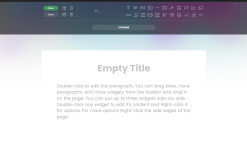
In the editor that appears, drag down a Title widget and a Paragraph widget onto your page, and get editing. (I just pasted a GPT2 article, please don't judge!) To format text you select it and right click on it, so to create a link you select your anchor text, right click, then click the paperclip icon. You can add a title, description and categories to the page using the box just underneath the widget bar.
3) Share and get the link
When you're finished with your article, click the green 'Share' button at the top left. This will let you publish the article and get a link to share. Click the paperclip icon, and copy the link it gives you. This is the url of your article.
You can index this as you would any other page, either with an indexing service or tiered links. (in fact, it looks like it's already indexed!)
Guide
1) Sign up for a free account
Visit this page to sign up:
Code:
https://caramellaapp.com/?lang=enClick on the 'Write' button in the top right and you'll get a modal window. Click 'Signup with email' and fill in the form with your details. You'll need to verify your email, so make sure to use one you can access. You can also signup with Twitter or Facebook, but I'm not bothering to cover this.
Once you've verified your account, you can login here:
Code:
Code:
https://caramel.la/login2) Add your content
After logging in, you are taken to a dashboard. Click on the 'Create a new page' link, and select 'New Page' from the little dropdown menu.
You can choose a different layout if you want, but I go with 'Blank'.
In the editor that appears, drag down a Title widget and a Paragraph widget onto your page, and get editing. (I just pasted a GPT2 article, please don't judge!) To format text you select it and right click on it, so to create a link you select your anchor text, right click, then click the paperclip icon. You can add a title, description and categories to the page using the box just underneath the widget bar.
3) Share and get the link
When you're finished with your article, click the green 'Share' button at the top left. This will let you publish the article and get a link to share. Click the paperclip icon, and copy the link it gives you. This is the url of your article.
You can index this as you would any other page, either with an indexing service or tiered links. (in fact, it looks like it's already indexed!)