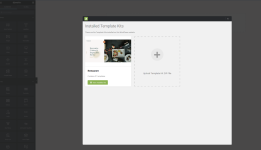
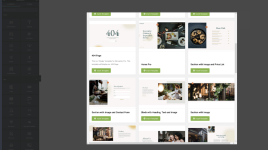
Welcome to the Elementor Template Kits section where we will be sharing the new Elementor Template Kits that ThemeForest has started selling.
1) It is recommended to use these with the FREE "Hello Elementor" Theme -
2) Many of the kits include templates for both the Free and Pro versions of Elementor - You can get the nulled Elementor Pro here at -
1) Install the Template Kit Import plugin from Plugins > Add New by searching for Template Kit Import.

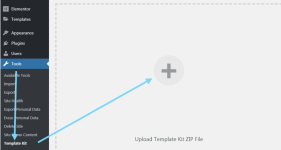
2) Once the plugin is activated, go to Tools > Template Kit
3) Click on Upload Template Kit ZIP file to browse to your zip file and import.
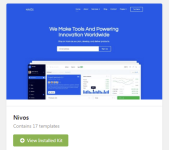
4) Your Template Kit preview will appear. Click View Installed Kit:
5) An orange banner will appear if your kit requires additional free plugins. Click Install Requirements for details.
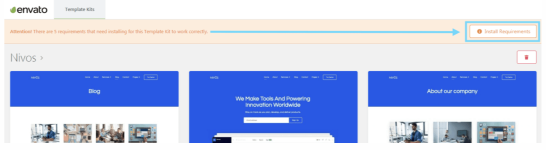
6) A popup will appear listing the plugins your kit needs installed or activated. Click Install Requirements to proceed.
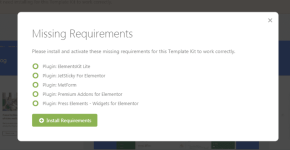
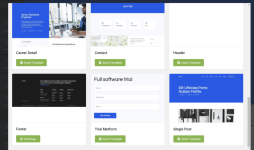
7) Now you may begin importing your templates by clicking the Import Template button on the desired template.
- Avoid clicking too many at once. Your browser can typically only handle up to 3-4 at a time.
- Import Global Kit Styles first, followed by any other Global templates for best results.
Inserting Templates
Any templates you import via the WP Admin area will be saved in your Elementor Template library and may be accessed inside the builder, too! This makes it easy to combine templates or use available blocks to build or enhance new layouts.
Global Templates
Global templates are a feature of Elementor Pro and will appear on several pages at once, or under special conditions. A common example of a global template is the menu header, which appears on all pages of your site if your kit includes one. Global templates only need to be edited in one place for the changes to take effect everywhere the template appears.
NOTE:
1) It is recommended to use these with the FREE "Hello Elementor" Theme -
2) Many of the kits include templates for both the Free and Pro versions of Elementor - You can get the nulled Elementor Pro here at -
How to Install the Template Kits:
1) Install the Template Kit Import plugin from Plugins > Add New by searching for Template Kit Import.
2) Once the plugin is activated, go to Tools > Template Kit
3) Click on Upload Template Kit ZIP file to browse to your zip file and import.
4) Your Template Kit preview will appear. Click View Installed Kit:
5) An orange banner will appear if your kit requires additional free plugins. Click Install Requirements for details.
6) A popup will appear listing the plugins your kit needs installed or activated. Click Install Requirements to proceed.
7) Now you may begin importing your templates by clicking the Import Template button on the desired template.
- Avoid clicking too many at once. Your browser can typically only handle up to 3-4 at a time.
- Import Global Kit Styles first, followed by any other Global templates for best results.
Inserting Templates
Any templates you import via the WP Admin area will be saved in your Elementor Template library and may be accessed inside the builder, too! This makes it easy to combine templates or use available blocks to build or enhance new layouts.
- Open the Elementor Builder, and click on the Envato button
- A modal window will appear displaying your installed kits. Click View Installed Kit to view the templates or blocks you want to add
- Click Insert Template to insert the block into your page
Global Templates
Global templates are a feature of Elementor Pro and will appear on several pages at once, or under special conditions. A common example of a global template is the menu header, which appears on all pages of your site if your kit includes one. Global templates only need to be edited in one place for the changes to take effect everywhere the template appears.